

 For those of you who have been trying to make money with your blog and just end up spinning your wheels, it’s probably time to get some advice from a pro — and a pro blogger by the name of Darren Rowse is just the person. I’ve spoken with Darren before and he’s a very down to earth guy and knows his stuff.
Most of you probably already know who Darren is but if you don’t, I highly recommend checking out and subscribing to his blog. He’s the voice of the “make money online” community and successfully makes over $30,000 a month just from blogging alone. It’s been his full-time job since 2005 so he obviously knows what he’s doing.
Showing posts with label Make Money Online. Show all posts
Showing posts with label Make Money Online. Show all posts
Sunday, July 10, 2011
How to Earn Six Figure Money from Blogging by Darren Rowse
Thursday, July 7, 2011
5 best and simple way to make money online
 It is not a dream to make money online working from home. It is real and hundreds and thousands of people across the world are making it. In this post you will find five best ways to make money online who have less of technical knowledge about websites.
Get Paid while you Surf
This is one of the big ways of earning online for all those net savvy people who loves surfing. There are lots of sites on Internet that pays you for surfing. Just register there and start surfing and start earning. Be careful of scammers on such sites. Sign only to trusted sites.
Sunday, July 3, 2011
AdvertiseSpace You can Easily Earn significant cash from Blog
 In My Previous Post I have written about Puxee the alternative to buysellads.com. With Puxee you can sell your blog or site ad spaces .. registration is totally free of cost even you have lower traffic..They will approve your site without any hurdles but of course you require traffic to get ads from buyers.
In the same manner there is another site advertise space where you can sell your blog or site ad spaces and earn significant revenue monthly.. but their affiliate program is also more interesting.. read below:
Puxee will be next alternative to buysellads
 The days of CPC & CPM ads are gone. Both publishers & advertisers look out for direct advertisements through sites like BuySellAds, AdvertiseSpace, etc... I see a lot of blogs running BuySellAds that simply shows people love making money online by building quality websites/blogs - a healthy blogosphere. But, I do get feedbacks saying "I got rejected from BuySellAds! What do I do? Suggest me few alternatives. When should I apply?"
Thursday, April 21, 2011
Making money through Buying and Selling Domains
A person who is working under the boss and is earning small money there is good news for them to make quick money at the internet. There are many other money making ideas available at the internet but I think it’s the easier and the fastest way to make money online. Many people in these days are making money through buying and selling of domain names at the internet.
 To buy a domain name you don’t need any specific skills. You just need to think of a domain name which is available at the internet and it has some popularity according to your mind. First of all you have to do a research at the internet that which things are popular at the market and what are the most popular searches that people are doing at the internet. When you find a popular word about some market e.g. (cricket) then buy a domain name which shows relevancy to the market you chose.
Friday, April 15, 2011
Free Tools and Services for Bloggers Part 2
Tags : Ad Management, Blogger, Blogger Tips, Blogging, Blogging Tips, Blogspot Tips, Download, Downloads, Earn Money, Gossips, Make Money Online, SEO Tutorials, Social Media, Tech Tips, Web Design, Webmaster Tips
 Bloggers do not just write articles! They have to do a lot of things to manage and promote their blogs. These activities range from commenting to finding useful design and software tools. Often such tools are life savers, allowing more time for the business of writing and keeping readers happy. But at the same time, finding perfect tool for a task is difficult and time consuming. So, we searched internet for best free blogging tools and services for bloggers and summed them up in this post.
COMMENTS
- DISQUS Comment System: Replaces your platform’s default commenting system. A must have for blogger users where even embedded form has popups (for captcha and user/url options).
- Intense Debate Comment System: Another good comment system with a cool “Reply via Email” option. Only thing I found annoying is the need to confirm for comment subscription via email! Further Reading: How to Install Intense Debate on Blogger.
- Formsmarts: A free form maker. You can use pop-up link options for platforms that do not let you embed JavaScript.
- Kontactr: A basic contact form available for embedding or as popup.
- HideText: Lets you create image from text. Ideal to hide your email contact address from spam bots.
- E-Mail Scrambler: Lets you scramble e-mail address (if you still want to embed it) in a format not recognizable by bots. You have to paste some code in the theme’s head section for it to work properly.
1015 Free Tools and Services for Bloggers
Tags : Blogger, Blogging, Blogging Tips, Blogspot Tips, Directory, Make Money Online, Marketing, Web Design, Webmaster Tips, Wordpress Tips
B

loggers do not just write articles! They have to do a lot of things to manage and promote their blogs. These activities range from commenting to finding useful design and software tools. Often such tools are life savers, allowing more time for the business of writing and keeping readers happy. But at the same time, finding perfect tool for a task is difficult and time consuming. So, we searched internet for best free blogging tools and services for bloggers and summed them up in this post.
toolbox
Advertising:
1. Blog Banner Clicks: Blog Banner Clicks lets you place your 125×125 banner on their homepage for free. Banners are ranked according to number of clicks. More clicks you get, more exposure you get.
2. EntreCard: Entrecard is a blogging network where you can buy and sell ad space for credits. Perfect for newbie bloggers as you can advertise without spending a penny.
3. AdGridWork: AdGridWork is a free targeted network for websites and blogs. You have to place your ad on your blog and after that, your ads will be served. They offer a lot of statistics for ad tracking.
4. Chitika AdPro: AdPro is a free offering from Chitika. They let you sell space on your blog directly without any fees and set up advertiser accounts so that advertisers get all info they need about ad performance. And you get 100% revenue after all this!
Comments:
1. DISQUS Comment System: Replaces your platform’s default commenting system. A must have for blogger users where even embedded form has popups (for captcha and user/url options).
2. Intense Debate Comment System: Another good comment system with a cool “Reply via Email” option. Only thing I found annoying is the need to confirm for comment subscription via email! Further Reading: How to Install Intense Debate on Blogger.
Contacts:
1. Formsmarts: A free form maker. You can use pop-up link options for platforms that do not let you embed JavaScript.
2. Kontactr: A basic contact form available for embedding or as popup.
3. HideText: Lets you create image from text. Ideal to hide your email contact address from spam bots.
4. E-Mail Scrambler: Lets you scramble e-mail address (if you still want to embed it) in a format not recognizable by bots. You have to paste some code in the theme’s head section for it to work properly.
Content:
contentImage Credit: ABContentOnline.com
1. Zemanta: Zemanta is a content suggestion tool that searches for related content (articles and pictures) around the web and also suggests tags and links. Zemanta has been one of our favorite plugins here on Blogging With Success. Recently, Zemanta announced support for Opera, Safari and Chrome. With this, major browsers are covered and it can be considered a complete solution for bloggers.
2. Copygator: Search web for duplicate copies of your content. Also gives a subscription option so that you can stay updated via email about scrapping.
3. OpenOffice.org: It is a free open source alternative to Microsoft Office. Do not worry, it works with Office files. OpenOffice.org Write, the word processor lets you export files and PDF and retains links. Useful for creating e-books with links. Note: This is not an online tool.
4. Ping-O-matic: Automatically pings(notifies) online services about your blog updates.
5. Pingoat: Another automatic pinging service.
6. LinkWithin: A related posts widget/plugin for Blogger, WordPress and other platforms. No signup, no ads. Just place code and related posts from archives will be shown under posts.
7. BlogThis!: Add to Firefox browser, a toolbar to access to Blogger’s ‘blogthis’ feature where you can make a blog post without visiting blogger.com. Use this interface from a page or article you want to ‘blog about’ — it seeds the draft post with highlighted text, the website url and any other text you want to key in, on the spot. Works with Firefox and Internet Explorer.
8. StumbleUpon: Browser toolbar lets you discover web sites based on your interests and refer them to your SU friends.
Design:
1. BrowserShots: BrowserShots is a free website that lets you get screenshot of any website. More than 70 browsers are available and you can request any number of shots for free.
2. FireShot: A Firefox or IE extension that lets you create customized screenshots of your web pages. There are tools that let you edit the snapshot and add text annotations. This software is good for web developers, and for communicating unique graphics to your blog readers. Captured & edited images can be downloaded as png, jpg, gif or bmp formats or uploaded to a free public screenshot host.
3. MoFuse: Mofuse lets you create a mobile friendly version of your website for free. You can customize colors, logo and even put ads on it without paying a penny.
4. DaButtonFactroy: Lets you create buttons for your blog. You can customize almost everything from background shadow to text and colors etc. Here’s a demo button:
button
5. Favicon.cc: Lets you create a free favicon. You can even add animation.Here’s a tiny animation by Mr I (as he admits, not a big artist, so no wonders here.)
favicon
6. WordPress Theme Generator: Lets you make your own two/three column WordPress theme for free. Colors, header image and width of sidebars can be changed.
7. PsycHo Free Template Generator: Generates Blogger template. You can customize number of columns, color scheme etc. Note: This tool is being redesigned and new version will be online soon.
8. I Like Your Colors: Like colors on webpage and want to know HTML codes for them? This tool extracts all the colors from a given page and shows the corresponding hexadecimal values.
9. ColorZilla: This is a Firefox addon that uses an eye dropper icon as a color-picker. Get color codes for anything on any webpage. Also use there different color palettes and select or compose the right color you want from a slide rule for hues and saturation. You can also zoom any online page! Useful for those tiny font messages you might get, which someone forwarded from a mobile device.
10. Firebug: Yet another Firefox addon with a wealth of development tools that let you edit, debug, and monitor CSS, HTML, and JavaScript on any web page.
11. CSS Portal : An excellent guide on using Cascade Styling Sheet elements to format text inline, overriding your template defaults.
12. Easy Calculations: Use this to convert colors form RGB to hex and vice-versa.
13. WebDeveloper: A menu and a toolbar extension for Firefox with various web developer tools that allow you to analyze all the different parts of a web page, including the CSS per element and outline objects. You can edit CSS on the screen and save the code to later update the template.
14. Degraeve.com: This software generates a palette of colors that match and complement any image your provide. You can match theme colors to a key component in your header for example.
imagepalette
Feeds:
1. Google Reader: Online feed reader to read feeds from favorite blogs.
2. Feed Compare: Lets you compare feed numbers with competition. Both new and old Feedburner are supported. Note: You have to give full feed address for new feedburner. e.g. http://feedproxy.google.com/feed-name
3. Feedkiller: Merge multiple feeds and read all your favorite blogs in one universal feed.
4. FeedIcon20: Lets you generate custom feed icons for your blog/website. Here is an example:
RSS feed
about Feed
5. ZapTXT: Sends you a notice via RSS, E-Mails or SMS when your favorite website is updated.
6. Page2RSS: Lets you create RSS feeds for websites that do not publish feeds. You can then subscribe to created feed and stay updated.
For Hosted Blogs:
1. Down Or Not?: Lets you check if a website is down or not.
2. DingIt’sUp: Notifies you via SMS, E-Mail or Twitter if your blog/website goes down.
3. Sitonomy: Ever wanted to find which tools are used by big guys to power their blogs? This website lets you check the technologies that they use. For example, you can find that ProBlogger uses Google Ad Manager and six statistics counters!
4. ServerCheck: Checks if a server is down, the IP of a domain and number of websites hosted on server(useful when deciding host).
HTML:
html_logo
Image Credit: Simplistichost.com
1. Meta Tags Generator: Generates meta tags for your blog which you can paste into your blog’s head section for better SEO.
2. IdTabs: Lets you add tabbed widgets to your blog. Note: You need jQuery before adding it.
3. Drop Down Menu Generator: Lets you create a drop down selection box for your site. Copy the code to your blog and you are done.
4. SikBox: Lets you make a live search box for your site. It is extremely lightweight. Just test the sample menu on their homepage by entering your blog address. However, this tool does not work for hosted blogs ( I tried Blogspot but it did not work, however m.bloggingwithsuccess.net worked out fine.)
5. Headline Animator: Displays animated recent post titles. No additional service, just go to FeedBurner–>Publicize–>Headline Animator.
6. Tabelizer: Converts data from Excel cells to HTML tables. Useful if you don’t know how to create tables.
7. WidgetBox: World’s largest source for widgets for blogs and websites. Widgets are available in every category from music to technology. You can even create tabbed widgets with your feeds (from RSS, Twitter etc.)
Lot of Widgets can slow down your Blog
8. Plus2net.com : An alternative to the converter tool above. Also has other CSS and color conversion tools on the sidebar.
Images:
PhotosImage Credit: Masters.com
1. WetFloor Maker: Lets you create a wet floor effect for images.
2. Imgur: Simple and fast image hosting. no need to register, just upload and get the hotlink for image.
3. MakeAGif: Lets you create animations from given images.
4. Free Banner Maker: Lets you make a banner by just dragging and dropping. you can choose or upload background and customize fonts. Lot of unique fonts available.
5. Logo Maker: Generates text and logos with cool effects.
6. Web 2.0 Stylr: Generates logo/banner with wet floor effects.
7. Flickr: Find the right image to accent your post content. Tools allow you to hot-link to the image in different sizes.
8. Photobucket: Online sharing for your photos and videos.
9. DailyWebshots: – similar to Flickr, upload your own photos, or link to others that fit your blog content.
10. Web Shots Pro: Easy software for creating thumbnails of your home page. Free account has limits on how often you can get an updated thumbnail. The software generates 4 image sizes which you can download: 100 x 75, 267 x 200, 400 x 300 and 640 x 480.
11. Shrink The Web: Similar to Shrink the web, creates thumbnails of web pages. Also expect a large queue of requests on both sites. Running them side by side, Shrink the web finished well ahead of the other one. It returned images in six sizes like 75 x 56 and 200 x 150px, making it more versatile.
12. Simplythebest : Contains free fonts for downloading. Use them to create custom logos and stylized font graphics for your blog.
13. DreamsTime: Contains access to low priced images as well as ‘royalty-free stock photography. Must register for free items; has quality images.
14. Public domain photos: Over 5,000 photos at this site are public domain, which you can use for any purpose, including commercial web sites.
15. FreeFoto: This site has a huge collection of free photos. All require attrition type linkbacks. The image can be hotlinked instead of downloading.You select from four different image sizes.
16. Acobox: Another website for free pictures. You do not need to copy or resize photos, just paste the code in post. Also available as WordPress Plugin.
Monetization:
1. Google Ad Manager: Google Ad Manager is a hosted solution for ad management. You can sell you ad space easily with it and also place other HTML ads. We are using it to manage our ads.
2. OpenX: OpenX is an open source ad management platform that is available as hosted or downloadable solution. Recommended for beginners.
3. Web Valuer: Tells you value of your website in dollars.
4. How Much is My Blog Worth?: Tells you value of blog based on Technorati Authority. You can also copy the given code for a little show off!
5. Dollar$hower ProdFinder: Lets you find a good ad network for monetizing your blog.
6. PayPal: Online transaction service. You can use it to accept payments from advertisers, donations and payments from ad networks. Creating an account is free. Only fees involved are during transactions(usually 2.5 to 3.5 % of transaction)
Offline Blog Editors:
1. Windows Live Writer: Windows live writer is a free offline blog editor from Microsoft. It supports most of the popular blogging platforms.
2. BlogDesk: BlogDesk is also a good feature rich offline editor. However, it does not support Blogspot.
3. ScribeFire: Available as an extension of Firefox, it is a good multi platform editor.
4. ByteScout Post2Blog: Another good editor which can automatically embed your pictures and other multimedia files. However, it can not add tags for Blogspot platform.
SEO:
1. Website Grader: Provides a score for things like website traffic, SEO, popularity, etc., giving some basic advice on improving your blog from a marketing perspective.
2. Review my Web: A report that compares you to competitors in your niche.
3. SEOmoz.org: A suite of tools such as rank and link checkers, and crawl test which reports how accessible your site is to search engines, highlighting potential issues.
4. Fast SERP: Lets you check your rank on major search engines for any keyword.
5. Google Preview: Firefox addon for more information in your search results – inserts preview images (thumbnails) and popularity ranks of sites listed.
Stats:
StatsImage Credit: Bounce.cc
1. 99 Counters: Create customized counters for your blog to show off number of visitors.
2. Google Analytics: The best free analytics suite available online. Tracks lot of data ranging from unique visits to number of clicks.
3. Statcounter: Another free real time analytics suite.
4. Sitemeter: Real time website tracking and counter service.
5. PageRank Alert: Set up e-mail alerts for Page rank updates for any page.
6. Dataopedia: Lets you check almost all statistics (except Page Rank) of any website.
7. Compete: Compares websites based on reach and daily traffic in USA.
8. Alexa: Alexa ranks websites based on their traffic. You can use it to compare your blog with competition based on worldwide or country specific traffic.
9. Site-Perf: Best Site Loading time analysis tool available. You can choose any of the three servers for a world-wide estimate. They even let you adjust number of connections, connection speed and browser!
10. PollDaddy: Lets you create good looking polls and keeps archive of results. You can embed poll as javascript or flash into posts. If you have self hosted wordpress blog, the plugin lets you create polls from there for free.
11. Chart Tools: Lets you create flexible and good looking charts online and share them.
12. Page Rank Widget for Opera: Simple widget that lets you check Page Rank of any page.
13. Alexa Info Widget for Opera: Displays Alexa info for any domain.
14. Linkscape: Analyzes backlinks to URL from over 36 billion URLs.
15. PostRank: A free RSS analyzing service that lets you rank posts from any blog. Also offers a Popular Posts widget. Diggs, Comments, Twets and more than 10 other matrices are used to determine the rank.
16. SearchStatus: A Firefox extension to display Google PageRank, Alexa rank, and SEOmoz Linkscape mozRank, backward/related links, Alexa info and more in your browser.
17. FoxClocks: Keep an eye on the time around the world along with your local time using small clocks in your status bar. Useful for international teams (we are a good example).
18. TimeTracker: Keep track of how much you browse with TimeTracker.
19. QuarkBase: Analyzes full information about a website from platform, framework to host and various ranks.
20. Link Diagnosis: Analyzes complete information about links to a website.
And finally, our 101.5th Tool:
The Lazy Blogger’s Post Generator: We do not have much to say about it, so we are leaving you with this sample that we generated with it:
“Oh My Gosh! I just woke up to the fact I have not updated this since petrol was cheaper than a bottle of Grange!… You would not believe that I’d been abducted by aliens. Unbelievable.
I am caught inside with an awfully big adventure, personal projects, just generally being a nuisance to the bodyguards of the blogger I am stalking, my day goes from 8am to whenever. I am beyond drunk most of the time. but who cares.
I totally promise I will write something that makes sense soon. Honestly! I mean it!”
These are 101(.5) free tools and services we found for bloggers. Do you have anything to add? Which one is your favorite? Do tell us through comments.
Monday, March 21, 2011
How to Get High Search Engine Rankings ? Do a Keyword Density Analysis of your Blog Post
Tags : Blog, Blogger, Blogging, Blogging Tips, Downloads, Graphics, Make Money Online, Marketing, Photoshop, SEO, SEO Tutorials, Social Media, Tech Tips, Web Design, Webmaster Tips, Wordpress Plugins
 It is said that “The better the keyword density, the higher your page ranking or higher search engine rankings may be”. High Search Engine Rankings can be obtained only by producing keyword rich content. To ensure high search engine rankings one has to properly optimize his post such that a particular set of keywords attain the maximum density in the post.
With millions of Internet pages all trying to capture the same reader’s attention, it is more than important to rank highly on search engines. The best way to climb in rank and get high search engine rankings is with the appropriate keyword density. Checking a text’s or a Post’s keyword density is a quick and easy task. Textalyser – “Welcome to the online text analysis tool, the detailed statistics of your text, perfect for translators (quoting), for webmasters (ranking) or for normal users, to know the subject of a text. Now with new features as the analysis of words groups, finding out the keyword density, analyze the prominence of word or expressions and thus ensure high search engine rankings. Webmasters can analyze the links on their pages”. Tip : If you are concerned about how your website or Blog’s Search Engine Rankings for specific search phrases, but have never used a keyword density analyzer, the Textalyser is what you are missing. So, next time remember about search engine Optimization in Posts of your Blog Hope these tips will get you High Search Engine Rankings. What do you think, Which phrase has been repeated in this Post to ensure High Keyword Density and which phase in this Post will help me in high search engine rankings.
Ensure High Search Engine Rankings
How to get High Search Engine Rankings
How to Improve Alexa Ranking for New Blogs - 5 Power Tips
Tags : Blogger, Blogging, Downloads, Graphics, Make Money Online, SEO, Social Media, Web Design, Webmaster Tips
Alexa.com is a subsidiary of Amazon.com, which includes a meter traffic and importance of a given web page, as with Google PageRank. Recently, I wrote an article on how to optimize the google pagerank . The Alexa ranking usually increases according to the number of users who visit a given page with the Alexa Toolbar installed.
The increase in Alexa Ranking is important only as a commercial vehicle. Networks and many webmasters are concerned about the Alexa ranking of pages in that they use it as an indicator of the value and relevance of a given page.
5 Powerful Ways to Improve your Alexa Ranking for Newer Blogs
Probably some of the ways and techniques to improve the Alexa ranking has been described in this first article. Only in this way is that you will attract readers and users interested in learning it. Increasing or improving the rankings is important, but never forget that more important than that is your audience. Work with her and for her, with quality and dedication. The rankings are the work of background.
Install the Alexa toolbar – As already mentioned, install the Alexa toolbar will help you increase your own ranking Alexa. Set as your home page, because that will make you also add a few extra points.
Place the widget on the Blog Sidebar – Placing the widget helps Alexa by the promotion of the service and increase your ranking. Every page view is counted by the widget making Alexa update your blog’s rankings more quickly.
Use Alexa redirection – Try putting this link on your websites http://www.alexa.com/data/details/traffic_details?url=http://www.xyz.com , by replacing the address of your website or blog. You can place the link or hidden at the end of each post for example. Each click will be counted as a visit and is told only 1 visit per IP.
Optimizing posts old – If you have any post older, receiving tens or hundreds of visitors every day, because it is well positioned in search engines, enjoy it by putting a widget or a link to the Alexa ranking.
Talk to the administrators of local cybercafes – and propose a monthly or annual plan to install the Alexa toolbar on all computers, and set your blog as homepage. Although this type of agreement is not as easy to achieve, results are very interesting and positive.
What do you think of improving Alexa ranking ?
How to Increase Blog Traffic
Tags : Blogger, Blogging, Downloads, Graphics, Make Money Online, SEO, Social Media, Web Design, Webmaster Tips
When people give advice on increasing blog traffic, usually they will tell you things like: "Write what you know" or "Send good posts to higher traffic blogs" or some such thing. Sure, that work on occasion, but I’ve found that Increasing the Traffic to a Blog requires some Skills which you Must Acquire and Know About…
Skills or Things that Should Be Known. I have seen for the past few Days I have been following my own articles which I wrote and Has Definitely Boosted My Blog Traffic. Hope these Articles will Help you a Lot in Increasing your Blog Traffic. Do Write in your Comments …
How to Calculate Actual Daily Visitors of a Site using Alexa Traffic Details ?
Tags : Blogger, Blogging, Downloads, Graphics, Make Money Online, SEO, Social Media, Web Design, Webmaster Tips
Previously, I had posted about how to improve alexa ranking for new blogs. Today, I have a very interesting Article for you which will help you to Find How much Traffic a Site Gets using Traffic Details from Alexa.
The Simple Formula to Calculate Daily Traffic from Alexa Traffic Details
Step 1 – Go to http://www.alexa.com/siteinfo/xyz.com (Replace xyz.com with your Site Name) . Click Reach
Step 2 – Find the “1 month’s Avg” (one month’s average) See Pic Below.
Here My Blogs “1 month avg” = 0.00125
Step 3 - Multiply the figure with 545454
For Eg. I am multiplying my own 1 month avg with 545454. ie 0.00125 x 545454 = 681 (daily unique visitors). Wow this is almost 90% accurate.
For My Old Blog Realtrix ie, 0.00278 x 545454 = 1518 (daily unique visitors). That’s again 96% accurate.
Similarly I found Amit Agarwal’s Labnol.Org is 0.0296 x 545454 = 16,145 (daily unique visitors). I don’t know how accurate it is but seems accurate upto 60%. I have heard labnol gets more than 30k visits per day.
PS : I can’t guarantee that the results will also be positive for all sites. But its worth a try.
So, What Your Alexa Say ? Reply in Comments…
Get Traffic from Facebook - Automatically Submit New Blog Posts in your Facebook Wall
Tags : Blogger, Blogging, Downloads, Graphics, Make Money Online, SEO, Social Media, Web Design, Webmaster Tips
Facebook is a really nice way to get traffic to your blog. Traffic from Facebook mainly means your friends visiting and people searching on facebook. So it implies only certain category of posts will attract traffic from facebook.
Although I don’t get any visits from facebook on my daily tech related posts. But some posts work well. The 3 post which gave me a good number of hits are Bollywood Bloggers in India, Register for MTV Roadies Battleground and Why Obama is the Coolest.
Getting Traffic to your Blog using Facebook
Well these posts are very much Offtopic but atleast they gave me some traffic from facebook friends and users. Hence I suggest that your submit your blogs’ feed to your facebook notes, so that your facebook wall is updated automatically updated when new posts are published in your blog.
How to Add Blog Feed to Facebook Notes and Publish The Automatically in your Facebook Wall
If you haven’t placed your blog feed to facebook can follow the steps below :
Login to your facebook account, point to Tab Settings on the menu bar, and then select Application Settings.
On the page appears, click the application of Notes.
Find Notes Settings on up right, and then click Import a blog.
On the page of Import an External Blog enter your blog feed address into the Web URL (For eg: http://www.telabela.com/feed)
Then click Start Importing button. On the page appears, click Confirm Import at the bottom of the page.
After This whenever you post something in your blog it will be updated to your facebook wall automatically. A Nice way to promote your Blog. Very Helpful if you have large number of friends in your facebook friend list.
Your Comments are necessary in this Post.
How to Stop Someone From Sending you Scraps on Orkut ? How to Ignore someone on Orkut ?
Tags : Blogger, Blogging, Downloads, Graphics, Make Money Online, SEO, Social Media, Web Design, Webmaster Tips
Recently, one of my friends was being Bugged with some Sort of Annoying Scraps being send by some unknown person. Even I had this problem once when a guy was sending me loads of “unwanted” and Irritating Scraps. In case if you are facing the same you should know How to Stop Someone From Sending you Scraps on Orkut ?
Previously, on orkut there wasn’t much options for your orkut security. But now, a lot of strict measures & new security measures along various Privacy Options on orkut have made orkut a bit more Safer.
Getting Back to the Topic, Well you can Easily Stop an Unknown person from Sending you Scraps Just By Ignoring Him/Her.
How to Ignore someone on Orkut ? Step 1 : First go to his/her profile, a look for more » in the profile
(given just below the display pic – see screenshot – left)
Step 2 : Then click on more » . After clicking it will bring up a few Options (see screenshot – right)
Step 3 : Now, Click Ignore User from the list.
(see screenshot – right)
Step 4 : Finally, that person will be in your Ignore List.
(see screenshot below).
This means he/she won’t be able to scrap you or send you unwanted friend requests any more.
Facebook Trick: Find Out Who Deleted you from FriendList
Tags : Blogger, Blogging, Downloads, Graphics, Make Money Online, SEO, Social Media, Web Design, Webmaster Tips
Check Who Removed You from their Facebook Friends List
Facebook Friends Checker userscript for firefox regularly checks your Facebook friends to check
whether anyone has removed you from their friends just to find who stops following you on twitter.
Facebook Trick: Find Out Who Deleted you from FriendList
Requirements : Firefox, Facebook Friends Checker, keeps track of when you get removed from
someone else’s friend list by regularly checking to see exactly who is de-friending you.
When the script detects that someone you used to be friends with is no longer one of your friends,
a message will appear informing you about who it was and giving a link to their profile page.

The script checks by default once per hour when on Facebook, but this time can be increased through :
Tools > Greasemonkey > User script commands… > Set time interval to check for removed friends…
> Facebook Friend Checker Script : Install.
Unhide Facebook Notifications, Status Updates in News Feed
Tags : Blogger, Blogging, Downloads, Graphics, Make Money Online, SEO, Social Media, Web Design, Webmaster Tips
Previously, in post about enhancing facebook user performance we
mentioned that one could hide status updates from friends or applications they disliked.
But, in case you want them back here is a quick guide to unhide status updates, notifications
of friends and apps. in the news feed (home page).
Unhide Previously Hidden News Feed Status Updates from Friends, Apps
- On the Home page, scroll Down to the very bottom of the page and click Edit Options.
- Select Either Friends, Pages, or Applications from the top of the list.
- Locate the Friend, Page or Application that you wish to unhide and click the associated
- Add To News Feed button.
- Click the Close button.


Now, you will be able to unhide the status messages you were missing out from your news feed.
How to Subscribe to Facebook Notification Feed
Tags : Blogger, Blogging, Downloads, Graphics, Make Money Online, SEO, Social Media, Web Design, Webmaster Tips
The best thing I like about facebook updates is their Notification system which alerts you whenever
someone comments, posts on your wall replies etc. anything related to you. So if you want to stay more
connected to your facebook notifications the best way would be to generate a rss feed of
your notifications and subscribe it via any rss reader.
How to Subscribe to Facebook Notification Feed
Step 1 : Login into your FB account.
Step 2 : Go to facebook.com/notifications.php. It will open an daily archive of your notifications.
Step 3 : On your right you will see a subscription box with two ways to subscribe to the notification feed. 
Step 4 : Select the subscription method you like. To Subscribe via Google Reader etc click "via RSS".
Step 5 : Now add that feed generated to Google reader or any other feed reader you are using.

That’s All. Now you will receive your facebook notification updates right in your RSS reader.
How to Add a Email Subscribe Button Below Blog Posts - Let people follow you through Feeds
Tags : Blogger, Blogging, Downloads, Graphics, Make Money Online, SEO, Social Media, Web Design, Webmaster Tips

Many People have Asked me this ,and today after Prateek asked “how to add
which you have added to end of your blog posts.” , I decided to Post it here.
Adding this will increase the chances of visitors to subscribe to your blog feeds hence improve your Blog Traffic.
Step 1 : Its really simple, Just add the Following Code from the Text File given Below…
Copy The Code : EmailSubscribeButtonCode.txt – Click
Step 2 : Now look for <p><data:post.body/></p> in the template. Make sure to “Expand Widget Template” in the Edit HTML page.
Now add the code given below, just beneath <p><data:post.body/></p>
Save your Template.
Step 3 : Now in the template Look For
http://www.feedburner.com/fb/a/emailverifySubmit?feedId=1671967
This is my blog’s Feed Burner Subscription link. Replace This with yours.
Ok, Now Save your template… If you face any problems freely ask in the Contact Form Below.
The Simplest & Smartest Way to Add a Digg Button to your Blog Posts - Enjoy the power of Digg for every Post
Tags : Blogger, Blogging, Downloads, Graphics, Make Money Online, SEO, Social Media, Web Design, Webmaster Tips
 If you
 want to add a Digg Button to your Post , then follow the simple Steps as Given Below.
For Example .. A screenshot of my friends blog
For Example .. A screenshot of my friends blog
- First log into your Blogger Dashboard.
- Go to layout.
- Then Click Edit HTML.
- Mark ‘Expand Widget Temlates‘ .
- Now search for the following code… <p><data:post.body/></p>
- Now place the following Code just Above (before) <p><data:post.body/></p>
- Now Save your Template.
<div style=’float:right; margin-left:10px;’>
<script type=’text/javascript’>
digg_url = ‘<data:post.url/>’;
digg_window = ‘new’;
</script>
<script src=’http://digg.com/tools/diggthis.js’ type=’text/javascript’/>
</div>
Enjoy !! ..
Use The Comment Box below if you have Any Queries.
How to Show the total Number of Posts & Comments in your Blog ?
Tags : Blogger, Blogging, Downloads, Graphics, Make Money Online, SEO, Social Media, Web Design, Webmaster Tips
I installed this widget today and I must say its really working Well for me. A Simple hack but really a Must Have for all your Blogs. This widget show the total number of Blog Post Published and the Total number of Comments In your blog.
Well, one good this is that more people are subscribing to my Blog Feeds after adding this to my Blog. See Pic Below. Follow the Steps Given Below to Install the Widget : <script style="text/javascript"> 7.Remember to replace the text "yourblog" with your blog address. Note that you replace it in two locations. You will see a small widget in your sidebar with the "Total Posts" n "Total Comments".  1.Log in to your Blogger account.
2.In your Blogger Dashboard, click on the "Layout" link.
3.This will bring you to the "Page Elements" tab. Decide where you want to insert the statistics widget and click on the "Add a Gadget" link accordingly.
4.Scroll down the list and click on "HTML/JavaScript" button.
5.This will open the "Configure HTML/JavaScript" window. In the title section, please type "Blog Statistics" or "Blog Information" or "Blog Data" or any title you wish to.
6.In the content section, copy & paste the following code exactly:
function numberOfPosts(json) {
document.write(‘Total Posts: <b>’ + json.feed.openSearch$totalResults.$t + ‘</b><br>’);
}
function numberOfComments(json) {
document.write(‘Total Comments: <b>’ + json.feed.openSearch$totalResults.$t + ‘</b><br>’);
}
</script>
<ul><li><script src="http://yourblog.blogspot.com/feeds/posts/default?alt=json-in-script&callback=numberOfPosts"></script></li>
<li><script src="http://yourblog.blogspot.com/feeds/comments/default?alt=json-in-script&callback=numberOfComments"></script></li></ul>
<center><span style="font-size:75%;"><a href="http://www.snaphow.com/" rel=”dofollow”>Get This Widget</a></span></center>
8.Click on "Save" button and Check your blog.
Related Posts with Thumbnails for Blogger
Tags : Blogger, Blogging, Downloads, Graphics, Make Money Online, SEO, Social Media, Web Design, Webmaster Tips
Related Posts with Thumbnails for Blogger
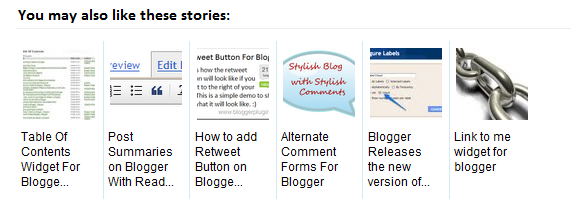
Displaying the links to related posts along with a thumbnail of the
corresponding post will help you increase the page views/user .Users will be tempted to go for the
related posts when they are presented attractively with thumbnails.
This is another first release from me.This one also uses the media thumbnails generated by blogger for each post.
For displaying the thumbnails,this widget will use the images uploaded for the post using the
blogger image uploader(from the post editor) [Update - Now supports external images also.]
Related Posts Widget with Thumbnails for Blogger
Here are the detailed steps to install the related posts widget for blogger with thumbnails
1.First of all Login to your blogger dashboard and navigate to Layout > Edit HTML and
check the "Expand Widget Templates" check box
2.Now look for
</head>
and replace it with
<!--Related Posts with thumbnails Scripts and Styles Start--> <!-- remove --><b:if cond='data:blog.pageType == "item"'> <style type="text/css"> #related-posts { float:center; text-transform:none; height:100%; min-height:100%; padding-top:5px; padding-left:5px; } #related-posts h2{ font-size: 1.6em; font-weight: bold; color: black; font-family: Georgia, “Times New Roman”, Times, serif; margin-bottom: 0.75em; margin-top: 0em; padding-top: 0em; } #related-posts a{ color:black; } #related-posts a:hover{ color:black; } #related-posts a:hover { background-color:#d4eaf2; } </style> <script type='text/javascript'> var defaultnoimage="http://1.bp.blogspot.com/_u4gySN2ZgqE/SosvnavWq0I/AAAAAAAAArk/yL95WlyTqr0/s400/noimage.png"; var maxresults=5; var splittercolor="#d4eaf2"; var relatedpoststitle="Related Posts"; </script> <script src='http://blogergadgets.googlecode.com/files/related-posts-with-thumbnails-for-blogger-pro.js'
type='text/javascript'/> <!-- remove --></b:if> <!--Related Posts with thumbnails Scripts and Styles End--> </head>
3.Now Find
<div class='post-footer-line post-footer-line-1'>
If you cant find it then try finding this one
<p class='post-footer-line post-footer-line-1'>
Now immediately after any of these lines(whichever you could find) place this code snippet
<!-- Related Posts with Thumbnails Code Start--> <!-- remove --><b:if cond='data:blog.pageType == "item"'> <div id='related-posts'> <b:loop values='data:post.labels' var='label'> <b:if cond='data:label.isLast != "true"'> </b:if> <script expr:src='"/feeds/posts/default/-/" + data:label.name +
"?alt=json-in-script&callback=related_results_labels_thumbs&max-results=6"' type='text/javascript'/></b:loop> <script type='text/javascript'> removeRelatedDuplicates_thumbs(); printRelatedLabels_thumbs("<data:post.url/>"); </script> </div><div style='clear:both'/> <!-- remove --></b:if> <b:if cond='data:blog.url == data:blog.homepageUrl'><b:if cond='data:post.isFirstPost'> <a href='http://www.bloggerplugins.org/2009/08/related-posts-thumbnails-blogger-widget.html'>
<img style="border: 0" alt="Related Posts Widget For Blogger with
Thumbnails" src="http://image.bloggerplugins.org/blogger-widgets.png" /></a>
<a href='http://bloggertemplates.bloggerplugins.org/' ><img style="border: 0" alt="Blogger Templates" src="http://image.bloggerplugins.org/blogger-templates.png" /></a> </b:if></b:if> <!-- Related Posts with Thumbnails Code End-->
4.You can adjust the maximum number of related posts being displayed by editing this line in the code.
var maxresults=5;5.To edit the title of the widget you can change this line of code
var relatedpoststitle="Related Posts";
6.To change the default thumbnail, you can edit this line of code
var defaultnoimage="https://blogger.googleusercontent.com/img/b/R29vZ2xl/AVvXsEh3Z5B80kWiHZ2iOkn5tu3XBWO9KWgZctlYwMqztjwAyVhZdq8b72C2z5sa5eu_yLuTZyYRbieSCgpvQpN-OrPezGPkaAiD6Ajlj34LyUvNbWtVh2s2X_s9DlQPnBU1hBiYA2KZ3sTYetc/s400/noimage.png";7.To Change the Colour of the Splitter Line , edit
var splittercolor="#d4eaf2";To change the other colours and all you will have to modify the CSS
If you fall into troubles implementing this,don't panic.. :) .
just leave me a comment here and i will help you out. If you like to give me any suggestions on
how to improve this widget,then it would be really great.
How to display the related posts on every page and not only on the post pages?
Just remove the two lines starting with <!-- remove --> from both step 3 and step 2.
that is lines
<!-- remove --><b:if cond='data:blog.pageType == "item"'>
and
<!-- remove --></b:if>
Subscribe to:
Posts (Atom)


